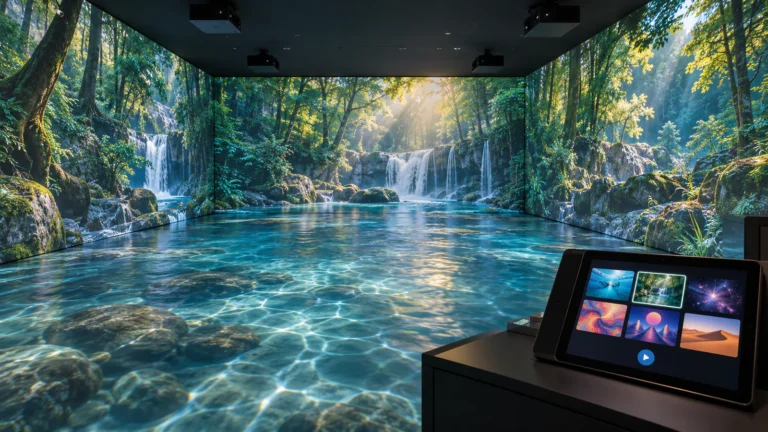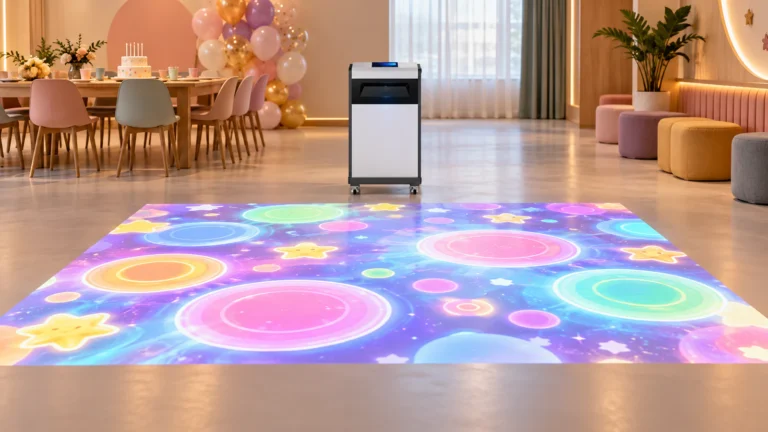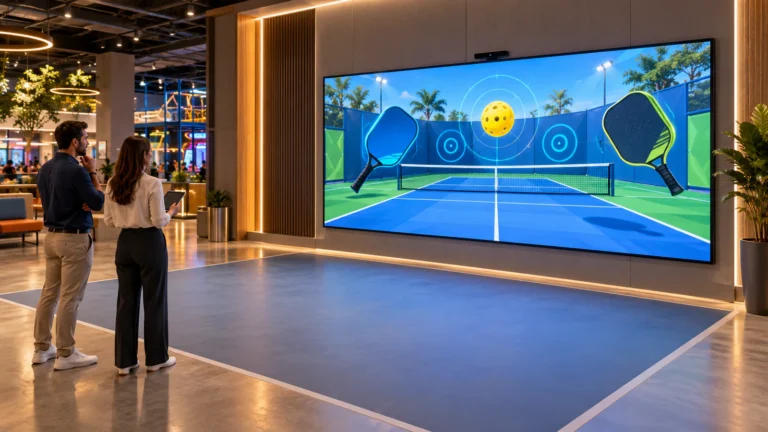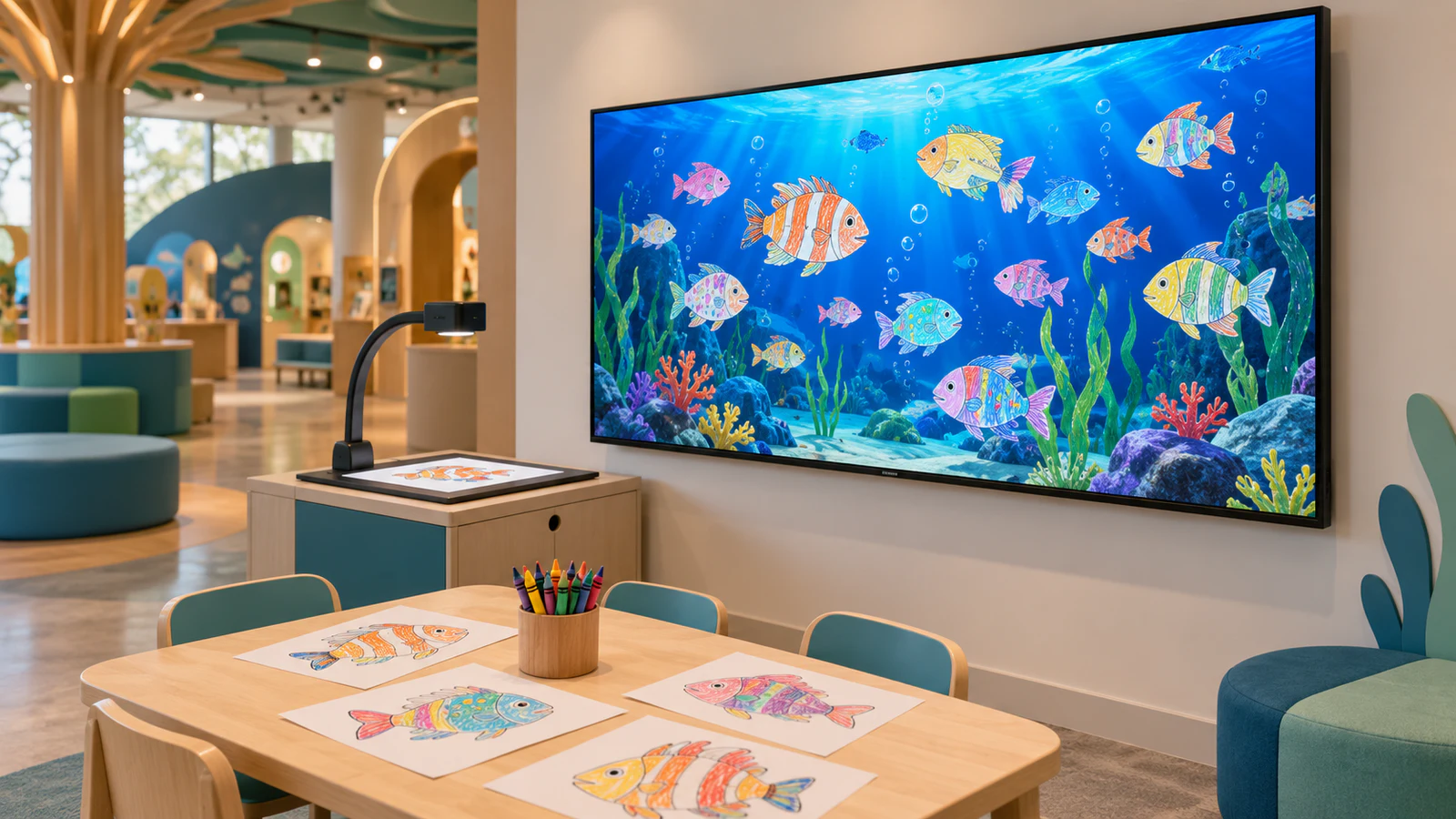
The published OneCraze Interactive Alive Drawing Games package includes a computer, scanner and projector. A TV-based installation is therefore a configuration to assess, not a confirmed drop-in replacement. Send the supplier your display model and intended visitor experience before buying additional equipment.
What Changes When the Aquarium Uses a TV?
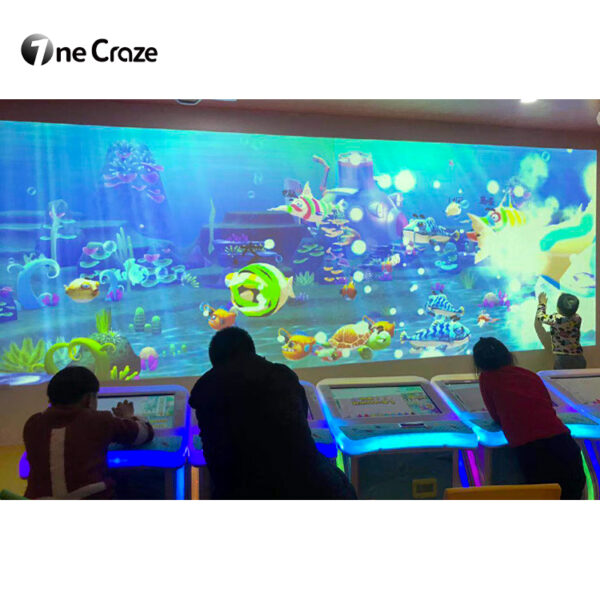
In a paper-based drawing aquarium, visitors color an approved template, submit it at a capture station and watch the resulting character enter an animated scene. The display presents that scene; it does not necessarily scan the artwork or run the application.
A compatible TV connected to the game computer may replace the visual output role of the projector. Nevertheless, the supplier must confirm resolution, aspect ratio, display settings and any software restrictions. Do not assume that a smart TV can run the aquarium software directly through its built-in apps.
Keep the capture decision separate. A scanner or fixed camera still needs to work with the recognition software, regardless of the main display. The drawing aquarium scanner-versus-camera guide explains that part of the system.
Does a TV Make the Aquarium Touch-Interactive?
An ordinary non-touch television does not detect fingers simply because it shows interactive content. Visitors can still contribute drawings through the capture station, but direct interaction with the displayed fish requires a supported input method.
A touch display supplies input as well as an image. However, the computer, drivers and aquarium software must accept and correctly map that input. An external sensor arrangement also requires compatibility checks and calibration; do not assume a sensor installed for a projection wall will work unchanged around a television.
Another distinction matters: a touchscreen used for drawing is not necessarily the aquarium display. For example, the OneCraze Interactive Graffiti Draw to Life system lists a touchscreen drawing station alongside projection equipment. That describes a creation interface and a separate shared scene, not proof that every display in the system accepts touch.
TV, Touch Display or Projection Wall: Which Fits the Venue?
Choose around the viewing experience and installation conditions. A compact drawing corner and a wide museum wall do not need the same display arrangement.
| Display option | Useful starting application | Interaction to confirm | Main purchasing checks |
|---|---|---|---|
| Non-touch TV or commercial display | A drawing station with a shared viewing screen | Participation through scanning; direct screen touch needs additional supported hardware | Input compatibility, visibility, operating-hours rating and mounting |
| Touch-enabled display | A reachable scene where visitors directly interact with content | Supported touch functions, simultaneous inputs and coordinate mapping | Drivers, software support, reach, protection and cleaning requirements |
| Projection wall | A larger shared scene designed around a wall surface | Separate tracking or touch-detection equipment where required | Throw distance, room lighting, shadows, surface finish and calibration |
A screen may simplify installation where a projector position is impractical, but it still needs suitable support, ventilation and protected cables. Projection can provide a larger image, but the available wall and lighting determine whether the result is suitable.
The interactive drawing wall system guide helps buyers define the complete attraction. Compare the proposed workflow rather than selecting a display on diagonal size alone.
What Equipment Do You Still Need With an Existing Screen?
Owning a TV does not mean you only need a download. Ask the supplier to identify what your chosen workflow requires and which items you can provide locally.
A paper-based proposal should address:
- A compatible computer and supported operating system.
- Aquarium software, approved printable templates and commercial licensing.
- A supported scanner or camera capture station.
- Video connections, audio and operator controls.
- Additional input hardware if visitors will touch the main scene.
- Mounting, furniture, cable protection and commissioning.
For digital drawing, request a separate specification for the creation interface and how it submits artwork. Do not remove the scanner from a paper-based quotation without confirming the replacement workflow.
Also ask whether software-only supply is available. The commercial software licensing guide covers floor software, so use its purchasing questions as a starting point—not as terms for the drawing aquarium. Obtain aquarium-specific confirmation of hardware compatibility, installation count, offline use and support responsibility.
How Should You Check Screen Size and Compatibility?
Send the exact display model, native resolution, available inputs, orientation and proposed mounting position. Add computer specifications and capture-device details if you intend to reuse them. A photograph of the full area helps the supplier understand lighting, reflections and visitor routes.
Then evaluate the experience from actual viewing positions. Visitors should be able to find their drawings without blocking the capture station or crowding the display. A bigger screen does not by itself increase scanning capacity or the number of characters the software can manage.
Before accepting the configuration, request a demonstration that covers:
- Capturing an approved drawing and showing it in the aquarium.
- Correct image proportions, readable controls and uncropped scene edges.
- The promised touch functions, if included.
- Restarting the computer and display in the agreed sequence.
- Normal operation under representative room lighting.
Include these checks in the factory acceptance test plan and repeat relevant checks on site. Where the supplier cannot test your exact screen, record that limitation and agree on the local commissioning process.
For agencies moving between venues, the custom drawing aquarium event guide adds questions about relocation, commercial use and branded content. Confirm whether a new display requires settings changes or recalibration each time.
Only if the supplier provides software that supports that television platform. A TV accepting video from an external computer is different from a TV running the application itself.
Possibly, but mirrored output and two independently interactive scenes are different requirements. Confirm computer outputs, software behavior, input mapping and license coverage before ordering.
Not automatically. The result also depends on capture quality, artwork assets and the application’s output resolution. Request a demonstration at the intended display settings.